Inspector Panel
The right sidebar shows editable properties for the selected clip.
Inspector Overview
When nothing is selected, the right sidebar shows 'No clip selected'. Click any clip on the timeline or canvas to see its editable properties here.
Select a Clip
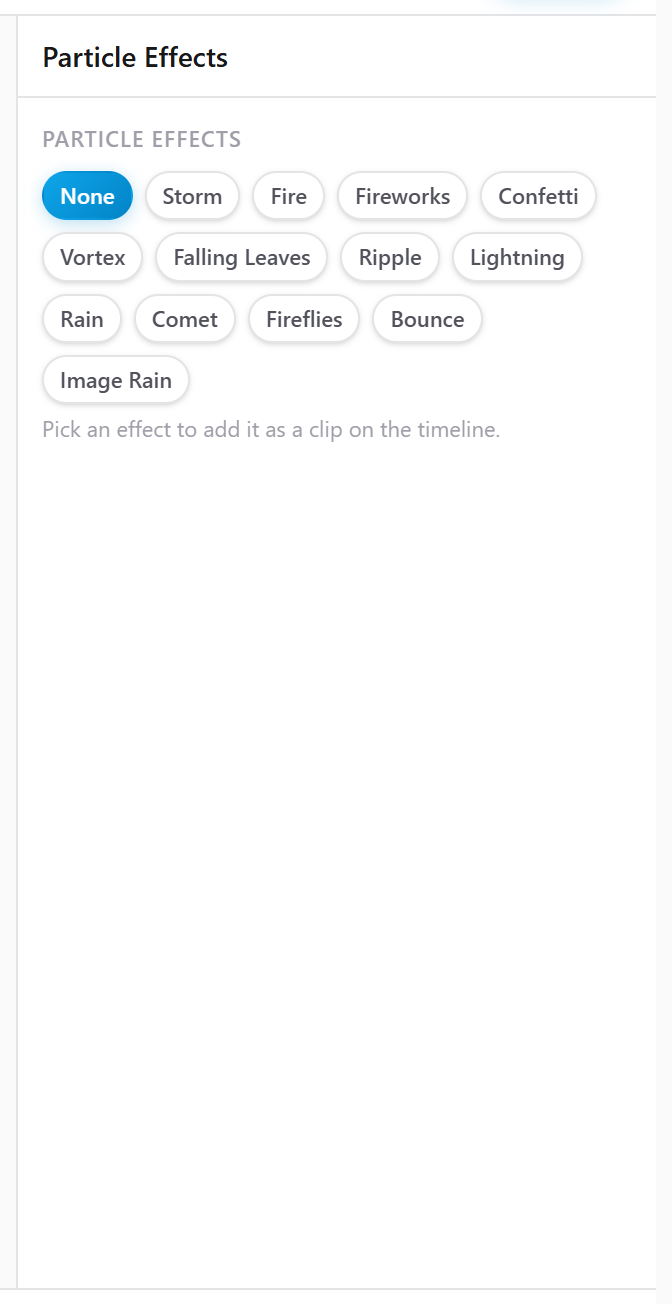
Click on any clip in the timeline to select it. The Inspector panel changes to show properties specific to that clip type (text, image, video, shape, etc.).
Text Properties
When a text layer is selected, the Inspector shows:
Text content — Edit the text string
Font — Choose from available fonts
Size — Text size in pixels
Color — Text color picker
Alignment — Left, center, right
Bold / Italic — Toggle weight and style
Shadow — Add drop shadow with blur and offset
Outline — Add stroke/outline around text
Opacity — Text transparency (0-100%)
Image/Video Properties
When an image or video is selected:
Position X/Y — Exact placement on canvas
Width/Height — Size in pixels
Rotation — Rotate in degrees
Opacity — Layer transparency
Border — Add border with color and width
Shadow — Drop shadow effect
Crop — Trim edges of the image/video
Flip — Horizontal/vertical flip
Shape Properties
When a shape is selected:
Fill Color — Interior color
Stroke Color — Border color
Stroke Width — Border thickness
Corner Radius — Round the corners
Opacity — Shape transparency
Audio Properties
When an audio clip is selected on the timeline:
Volume — Master volume slider (0-200%)
Offset — Start position within the audio file
Duration — How long the audio plays
Effects — Echo, delay, chorus toggles
Curve Editor — Open the volume curve editor
Multi-Select
Hold Shift and click multiple clips to select them all at once. The Inspector shows common properties that can be adjusted for all selected clips simultaneously.