Effects & Filters
38 visual filters and particle effects to enhance your video.
Open Effects Panel
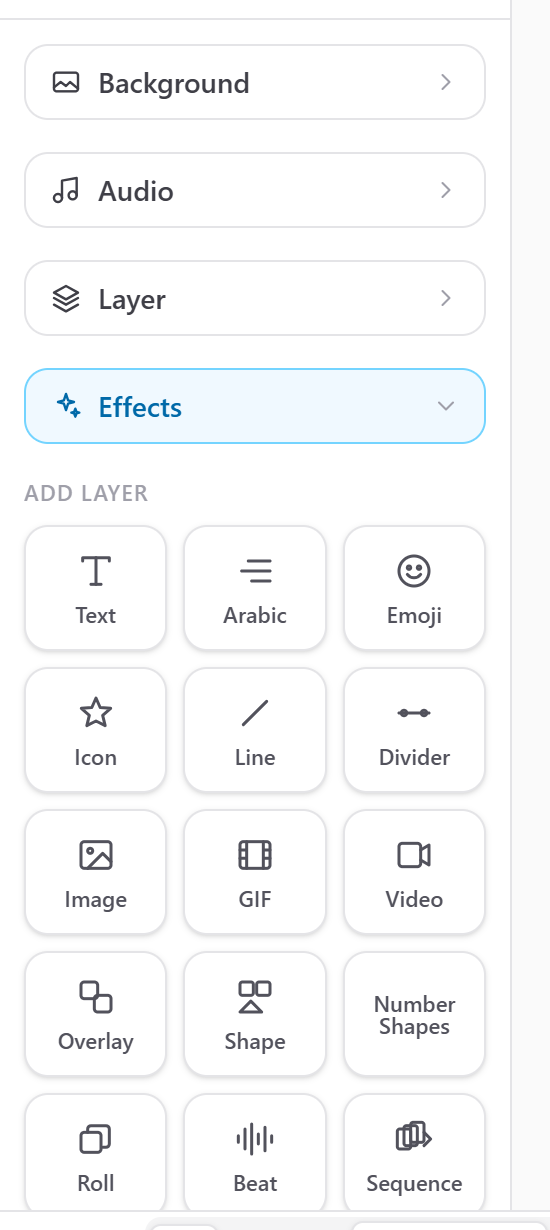
Click the Effects tab in the left sidebar. The panel shows two sections: visual filters at the top and particle effects below.
Select a Filter
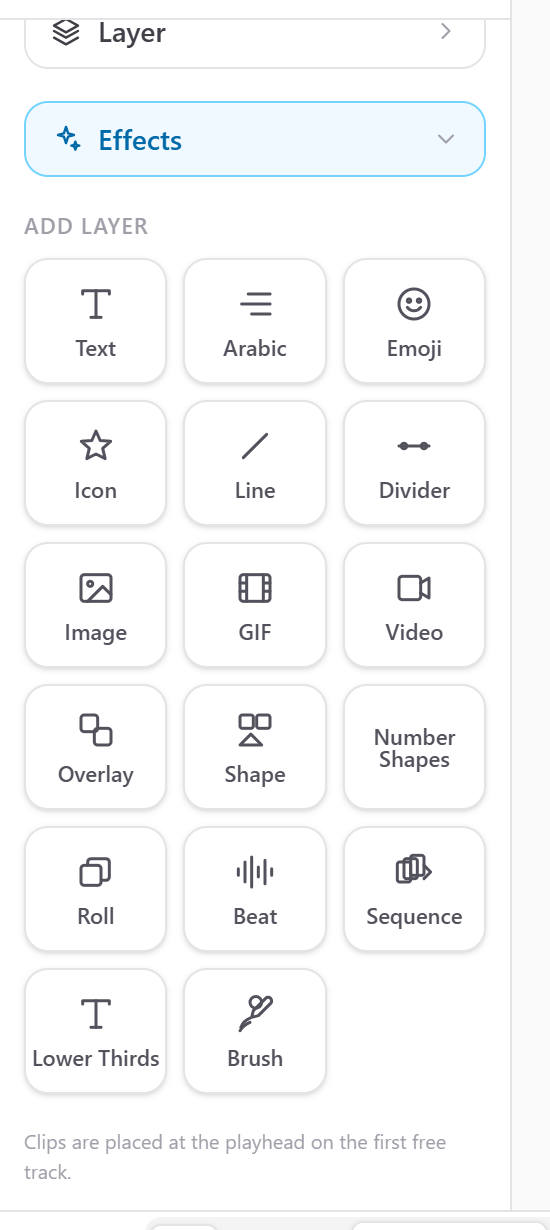
Scroll through the filter list to see all 38 options. Click a filter to apply it to the selected clip or the entire project. The canvas preview updates immediately.
Adjust Filter Intensity
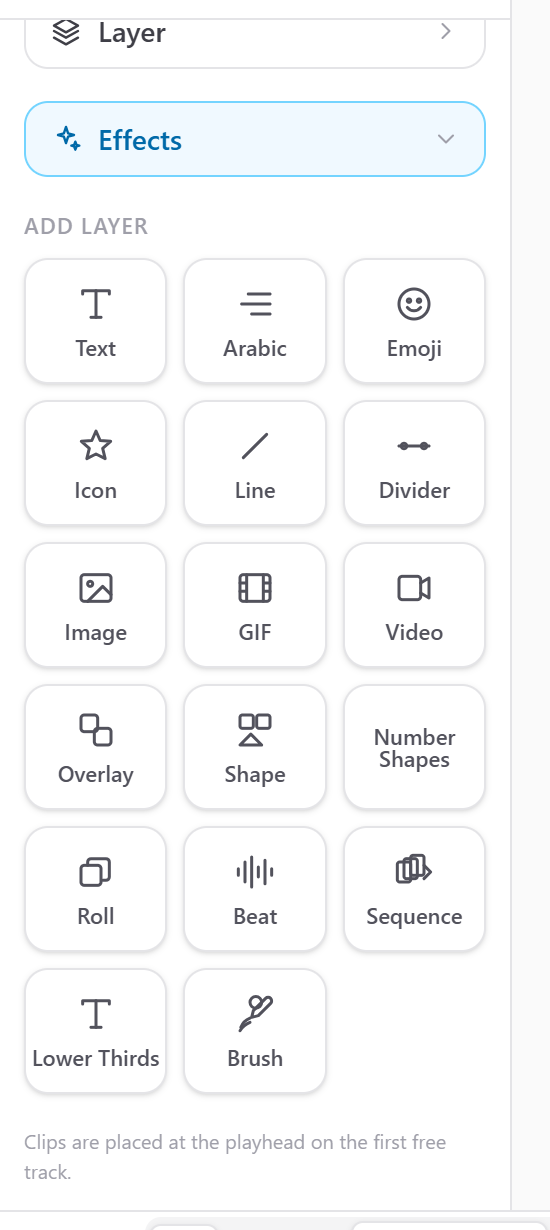
Use the Intensity slider to control how strong the filter effect is. At 0% the filter is off. At 100% it is at full strength. Most filters look best between 40-70%.
Filter Types Available
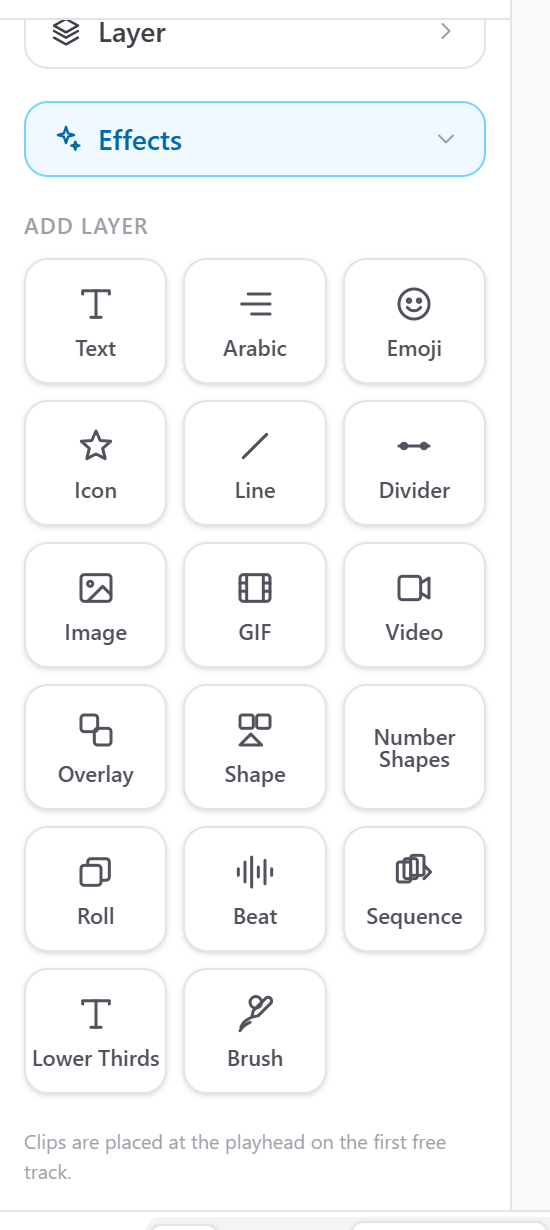
The 38 filters include:
Color — Sepia, Vintage, Warm, Cool, B&W, Fade, High Contrast
Artistic — Oil Painting, Watercolor, Sketch, Comic Book, Pixelate
Distortion — Glitch, VHS Retro, Fisheye, Mirror, Kaleidoscope
Light — Lens Flare, Light Leak, Film Burn, Vignette, Glow
Blur — Gaussian, Motion, Radial, Zoom, Tilt-Shift
Sharpen — Unsharp Mask, High Pass, Detail Enhance
Mood — Cinematic, Dreamy, Noir, Retro, Cyberpunk
Particle Effects
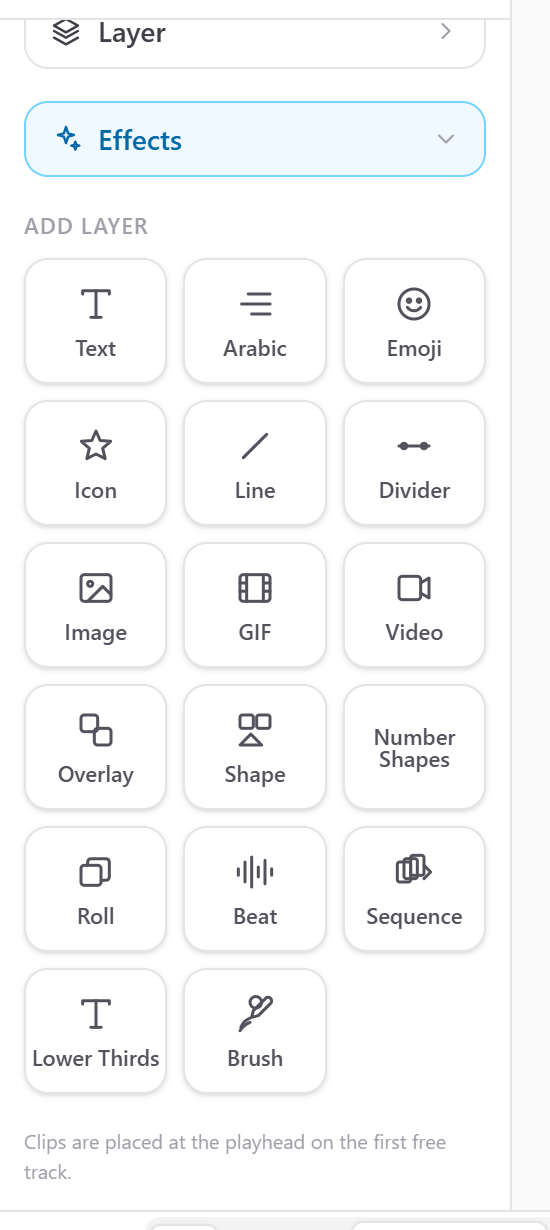
Scroll down to the particle section. Particle effects overlay animated particles on your video — snow, rain, fire, sparks, dust, confetti, and more. Adjust count, speed, size, and opacity.
Combine Filters
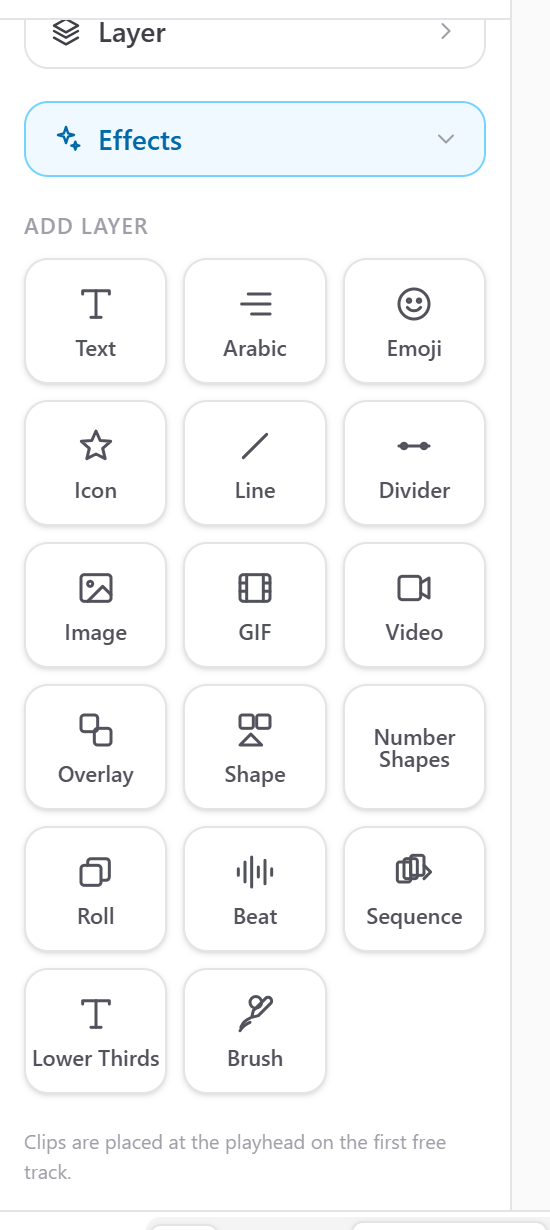
You can apply multiple filters to the same clip. Each filter stacks on top of the previous one. Use the layer list in the right sidebar to manage filter order and remove individual effects.