Background Options
Set your canvas background to solid color, gradient, image, or video.
Open Background Tab
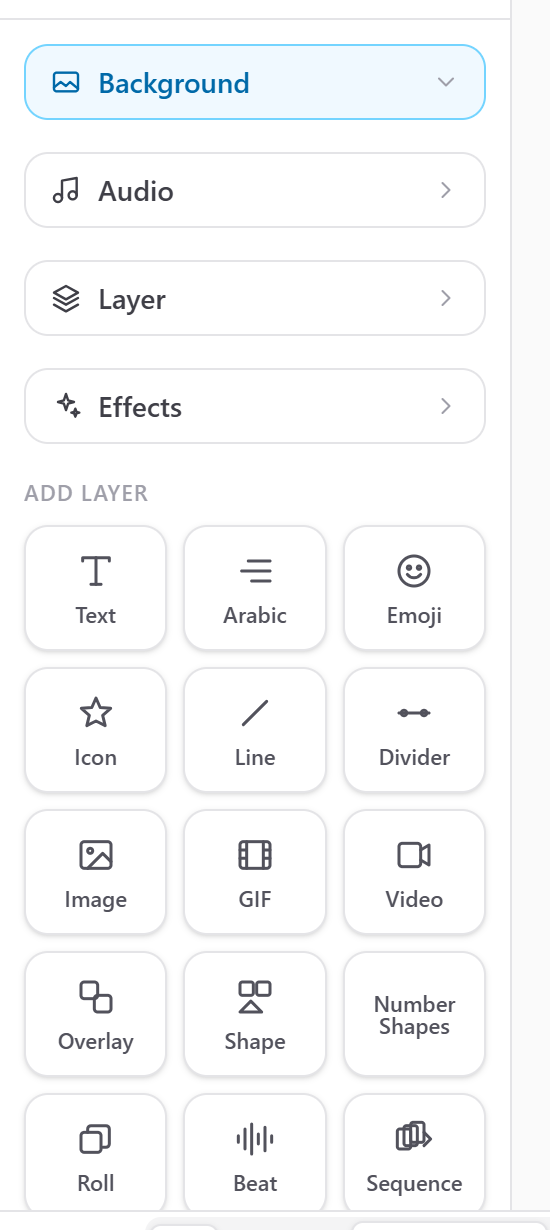
Click the Background button in the left sidebar to expand the background panel. Scroll down to see all available options.
Solid Color Background
Click the color swatch to pick a solid color. Use the color picker or enter a hex code. The canvas instantly updates to show the new background color.
Gradient Background
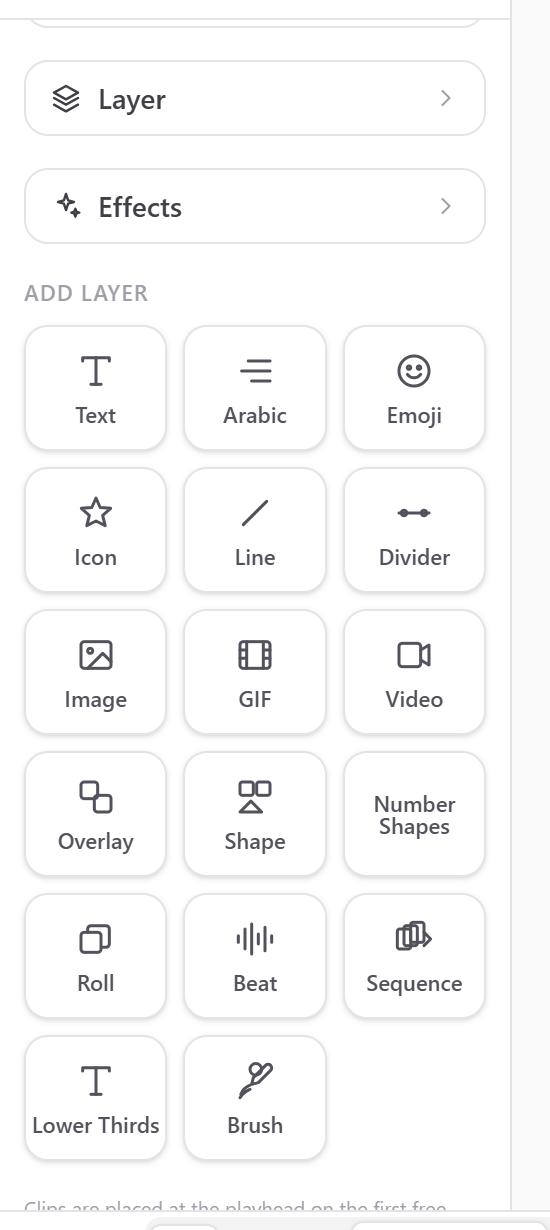
Scroll down to the gradient section. Select two or more colors to create a gradient. Choose the direction (linear, radial) and angle. Gradients are great for professional-looking backgrounds.
Image Background
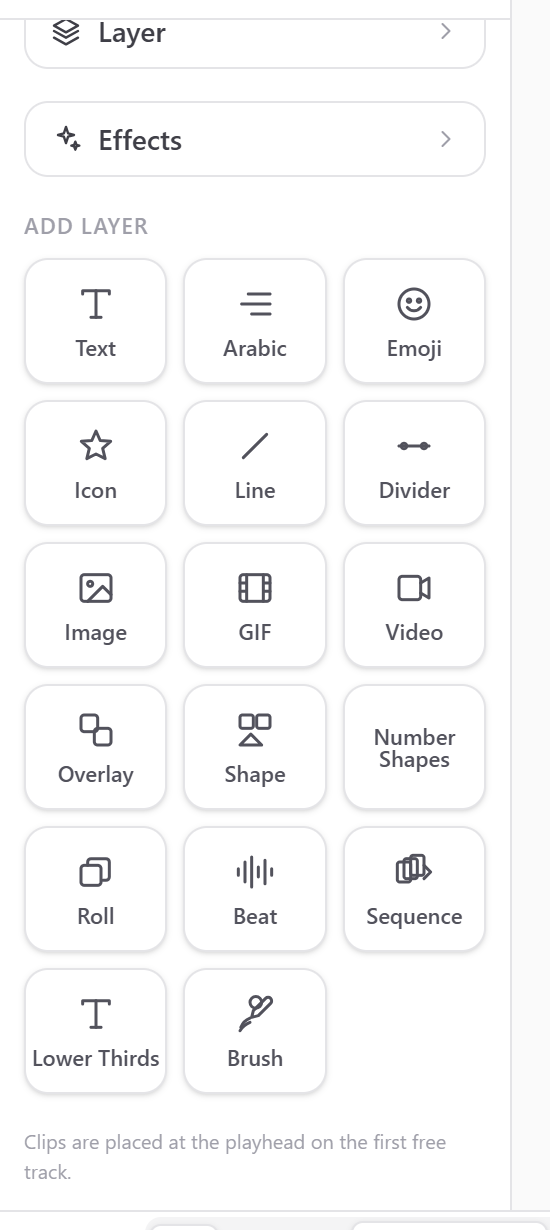
Upload an image to use as the background. The image fills the canvas. Adjust scale, position X, and position Y to frame the image correctly. Enable blur for a frosted glass effect.
Video Background
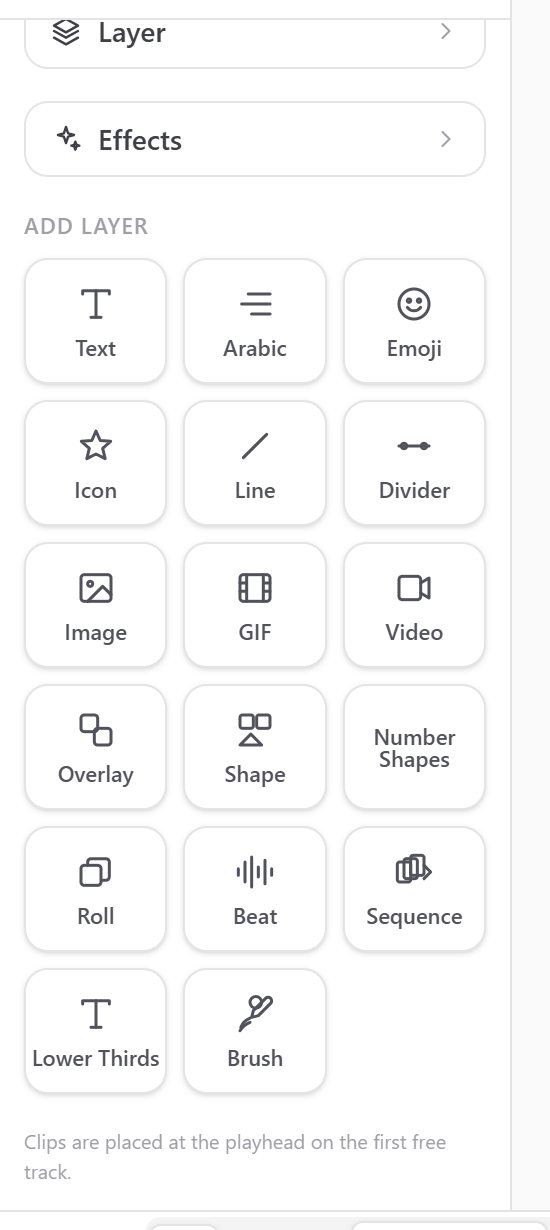
Upload a video file to use as an animated background. The video loops automatically. Adjust the same scale and position controls as image backgrounds.
Background Settings
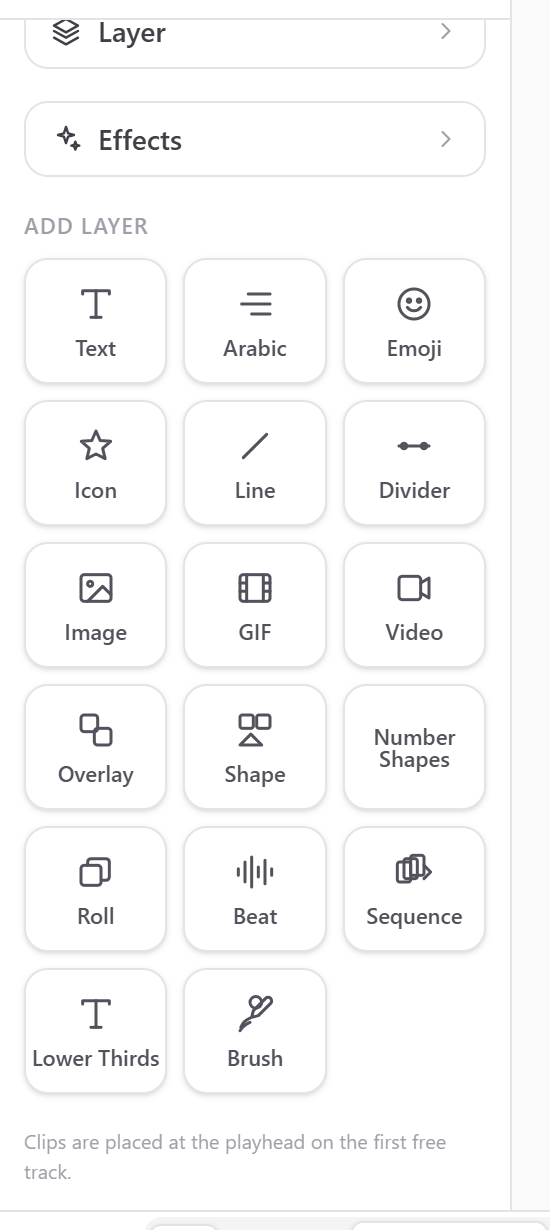
Scroll to the bottom of the Background panel for additional settings:
Blur — Apply Gaussian blur to the background (0-100)
Opacity — Control background transparency (0-100%)
Scale — Zoom in/out on image/video backgrounds
Position X/Y — Move the background image/video
Start/Duration — When the background appears and how long it lasts
Animations — Add movement to static backgrounds
Multiple Backgrounds
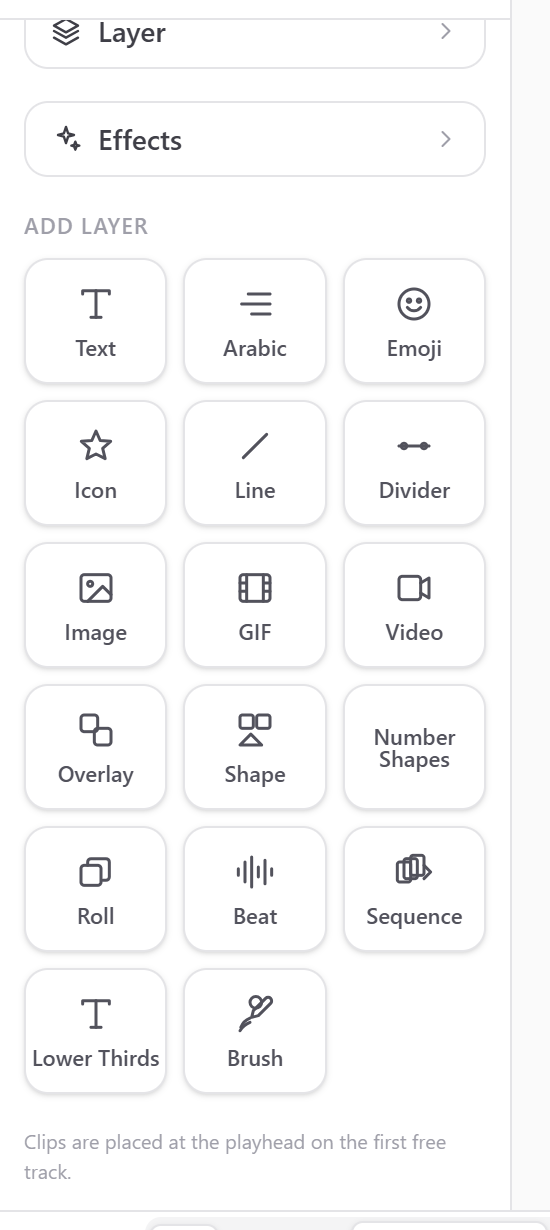
You can add multiple backgrounds that switch at different times. Each background has its own start time and duration on the timeline. Use the 'Backgrounds' list to manage them.